Config Scrapyard
Muh dotfiles
dwm keybinds
Search file to edit in Neovim
Super (Windows key) + SHIFT + E opens a terminal window with a fzf menu that lets you select between files from the home directory and its subdirectories.
- You can choose a file to edit in
neovimfrom thefzfmenu, and after you quit, you'll be in the same directory as the selected file. - The file
'~/stuff/doc/files'is generated by a line I added to/etc/xprofile, if you have a new file since its generation you can press the'🔄 Reload'button to generate it again.
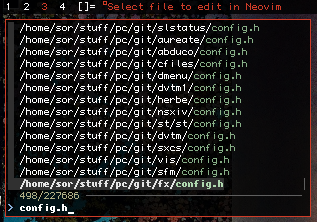
{ MODKEY|ShiftMask, XK_e, spawn, SHCMD("st -t \"Select file to edit in Neovim\" sh -c 'sfl(){ fl=\"$(cat ~/stuff/doc/files | fzf)\"; cd \"${fl%/*}\" 2>/dev/null; case \"$fl\" in \"🔄 Reload\") { echo \"🔄 Reload\" > ~/stuff/doc/files; find ~ -type f >> ~/stuff/doc/files; sfl; }; ;; *) nvim \"$fl\";; esac; }; sfl; printf \"\033]0;st\007\"; clear; exec $SHELL'") },
Old version
The same but with on-demand file search instead of using the 'files' file.
{ MODKEY|ShiftMask, XK_e, spawn, SHCMD("st -t \"Select file to edit in Neovim\" sh -c 'fl=$(find ~ -type f | fzf); cd \"${fl%/*}\"; nvim \"$fl\"; exec $SHELL'") },
Directory Search
Super (Windows key) + E opens a terminal window with a fzf menu for selecting between folders from the home directory and its subdirectories.
- Much like the neovim keybind but for
cd, search and enter directories instead of editing files. - The file
'~/stuff/doc/dirs'is generated by a line I added to/etc/xprofile, if you have a new directory since its generation you can press the'🔄 Reload'button to generate it again.
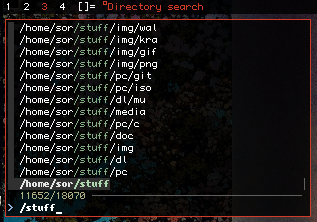
{ MODKEY, XK_e, spawn, SHCMD("st -t \"Directory search\" sh -c 'cdir(){ dir=\"$(cat ~/stuff/doc/dirs | fzf)\"; cd \"$dir\" 2>/dev/null || { echo \"🔄 Reload\" > ~/stuff/doc/dirs; find ~ -type d >> ~/stuff/doc/dirs; cdir; }; }; cdir; printf \"\033]0;st\007\"; clear; exec $SHELL'") },
Old version
The same but with on-demand file search instead of using the 'dirs' file.
{ MODKEY, XK_e, spawn, SHCMD("st -t \"Directory search\" sh -c 'cd \"$(find ~ -type d | fzf)\"; printf \"\033]0;st\007\"; exec $SHELL'") },
File Search + Multi-tool
Super (Windows key) + R does basically what the neovim keybinding does except it uses different programs for different file-types.
nsxivfor:- images (png, jpg/jpeg, webp), It'll also open all the images in the same directory of the selected image
- gifs, looping them
mpvfor:- videos (mp4, webm, mkv, avi)
- audios (mp3, flac, wav), looping them, with no video
zathurafor PDFs${BROWSER:-xdg-open}for HTML- Run executables (exe, sh)
Neovimfor other files- The file
'~/stuff/doc/files'is generated by a line I added to/etc/xprofile, if you have a new file since its generation you can press the'🔄 Reload'button to generate it again.
{ MODKEY|ShiftMask, XK_r, spawn, SHCMD("st -t \"Multi-tool\" sh -c 'msl(){ fl=\"$(cat ~/stuff/doc/files | fzf)\"; cd \"${fl%/*}\" 2>/dev/null; case \"$fl\" in *.png|*.jpg|*.jpeg|*.webp) nsxiv \"$fl\" \"${fl%/*}\";; *.gif) nsxiv -a \"$fl\" \"${fl%/*}\";; *.mp3|*.flac|*.ogg|*.wav) mpv --no-vid --loop \"$fl\";; *.mp4|*.webm|*.mkv|*.avi) mpv \"$fl\";; *.html) ${BROWSER:-xdg-open} \"$fl\";; *.pdf|*.epub) zathura \"$fl\";; *.exe|*.sh) \"$fl\";; \"🔄 Reload\") { echo \"🔄 Reload\" > ~/stuff/doc/files; find ~ -type f >> ~/stuff/doc/files; msl; }; ;; *) nvim \"$fl\";; esac; }; msl; printf \"\033]0;st\007\"; clear; exec $SHELL'") },
Old version
The same but with on-demand file search instead of using the 'files' file.
{ MODKEY|ShiftMask, XK_r, spawn, SHCMD("st -t \"Multi-tool\" sh -c 'fl=$(find ~ -type f | grep -v \".cache/nsxiv\" | fzf); cd \"${fl%/*}\"; case \"$fl\" in *.png|*.jpg|*.jpeg|*.webp) nsxiv \"$fl\" \"${fl%/*}\";; *.gif) mpv --loop \"$fl\";; *.mp3|*.flac|*.ogg|*.wav) mpv --no-vid --loop \"$fl\";; *.mp4|*.webm|*.mkv|*.avi) mpv \"$fl\";; *.html) ${BROWSER:-xdg-open} \"$fl\";; *.pdf|*.epub) zathura \"$fl\";; *.exe|*.sh) \"$fl\";; *) nvim \"$fl\";; esac; exec $SHELL'") },
Image previews variant
Using ueberzogen instead of vanillafzf enables image previews with ueberzug, which look cool, as shown in the top screenshot in the rice page.
{ MODKEY|ShiftMask, XK_z, spawn, SHCMD("st -t \"Multi-tool\" sh -c 'fl=$(echo ~/$(ueberzogen)); cd \"${fl%/*}\"; case \"$fl\" in *.png|*.jpg|*.jpeg|*.webp) nsxiv \"$fl\" \"${fl%/*}\";; *.gif) mpv --loop \"$fl\";; *.mp3|*.flac|*.wav) mpv --no-vid --loop \"$fl\";; *.mp4|*.webm|*.mkv|*.avi) mpv \"$fl\";; *.html) ${BROWSER:-xdg-open} \"$fl\";; *.pdf|*.epub) zathura \"$fl\";; *.exe|*.sh) \"$fl\";; *) nvim \"$fl\";; esac; exec $SHELL'") },
dmenu Emoji Keyboard
Super (Windows key) + SHIFT + D opens a dmenu menu for selecting between emojis on '~/stuff/doc/emojis.txt' to copy to clipboard, based on their names.
- To get the emojis.txt file:
curl -sSL "https://unicode.org/Public/emoji/latest/emoji-test.txt" | sed -ne 's/^.*; fully-qualified.*# \(\S*\) \S* \(.*$\)/\1 \2/gp' >"emojis.txt" - You can edit the file to add more emojis or symbols, or edit the ones included.
- You'll need a emoji font (e.g. Noto Color Emoji) to properly see the emojis.

{ MODKEY|ShiftMask, XK_d, spawn, SHCMD("emoji=$(cat ~/stuff/doc/emojis.txt | dmenu -p \"Select emoji to copy:\" -i) && [ -n \"$emoji\" ] && echo \"$emoji\" | awk '{print $1}' | tr -d '/\n' | xclip -selection clipboard") },
dmenu Bookmarks
Super (Windows key) + Insert opens a dmenu menu for selecting between links on '~/stuff/doc/bookmarks' and other files to copy to clipboard.

{ MODKEY, XK_Insert, spawn, SHCMD("link=\"$( { cat ~/stuff/pc/html/new/links ~/stuff/pc/html/new/rice | grep -oP 'href=\"\\K[^\"]+' | sed 's#^//#https://#g'; cat ~/stuff/doc/bookmarks; } | dmenu -i -l 10)\" && [ -n \"$link\" ] && { printf \"%s\" \"$link\" | xclip -selection clipboard && notify-send \"Copied '$(echo $link | sed -e 's#https://##g' -e 's#http://##g')' to clipboard.\"; }") },
History Search
Super (Windows key) + SHIFT + Return (Enter) opens a terminal window with a fzf menu, allowing you to select a command from '~/.cache/zsh/history' to run.
- ⚠️ WARNING ⚠️: This uses
xclipto copy the selected command. Although it preserves the previous clipboard in a variable and restores it after pasting, the clipboard data is lost once the window is closed.
zshby default stores history at~/.zsh_history, but you can change that in the.zshrcusing:HISTFILE="/home/$USER/.cache/zsh/history".- This isn't a replacement for
zsh vimode history search '(ESC + /)', or the shell's!<command>, but this is more convenient in some cases.
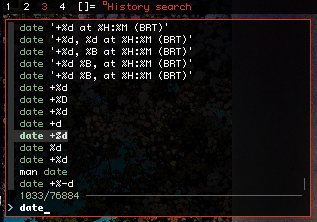
{ MODKEY|ShiftMask, XK_Return, spawn, SHCMD("st -t \"History search\" sh -c 'setxkbmap br; clip=\"$(xclip -selection clipboard -o 2>/dev/null)\"; tac ~/.cache/zsh/history | fzf --no-sort -e | tr -d \"\n\" | xclip -selection clipboard; xdotool key ALT+V; clear; printf \"%s\" \"$clip\" | xclip -selection clipboard; printf \"\033]0;st\007\"; exec $SHELL'") },
Old version
- The command
setxkbmap brensures that the keybind enables typing of Brazilian Portuguese special characters. - ⚠️ WARNING ⚠️: This uses
xdotoolto type, so pressing other keys while the command is being typed is ill-advised: - Pressing
Superwhile the command is being written could trigger other keybindings,SHIFTwill modify the input as expected. - If the focus is moved to another window, the command will be typed there instead of the expected terminal window.
{ MODKEY|ShiftMask, XK_Return, spawn, SHCMD("st -t st sh -c 'setxkbmap br & xdotool type \"$(tac ~/.cache/zsh/history | fzf --no-sort -e)\"; clear; exec $SHELL'") },
Consooming Media
Super (Windows key) + C opens a terminal window with a fzf menu for selecting between media stored at '~/stuff/media/tv'. It simply lists what's in the directory and lets you select what to play on mpv from the fzf menu.
- Works with folders for shows and standalone movies in video formats, or movies inside folders.
- Automatically saves the progress once you quit mpv and ensures playback resumes where it left off.
- Full-screen.
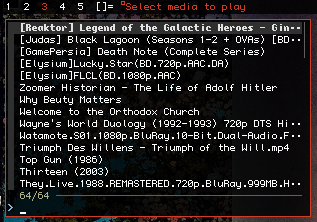
{ MODKEY, XK_c, spawn, SHCMD("st -t \"Select media to play\" sh -c 'cd ~/stuff/media/tv; mpv --fs --save-position-on-quit --no-pause \"$(ls | fzf)\"'") },
Reading Books
Super (Windows key) + SHIFT + C does about the same as the media keybinding but with zathura for files at '~/stuff/media/pdf'.
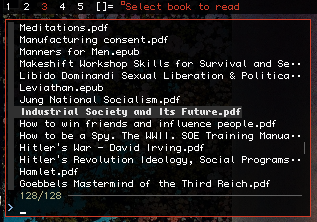
{ MODKEY|ShiftMask, XK_c, spawn, SHCMD("st -t \"Select book to read\" sh -c 'cd ~/stuff/media/predf; zathura \"$(ls | fzf)\"'") },
Full config.h
Some things need dwm patches to work.
dwm/config.h
slstatus config

Cmus music status
Displays the current song playing on cmus (if running) in the format: "Artist - Song Title ▶️ 0:00-0:00"
- It displays a "▶️" if the song is playing and a "II" if it's paused.
- It also works with untagged music, but the file must be named accordingly, such as
'Lebanon Hanover - Gallowdance.flac' - Set
static const char unknown_str[] = "";inconfig.hto remove slstatus' 'n/a' thing, so that nothing is displayed if cmus isn't running
{ run_command, "%4s ", "pgrep -x cmus > /dev/null && (cmus-remote -C status | grep -q 'tag artist' && echo \"$(cmus-remote -C status | grep -oP '(?<=tag artist ).*') - $(cmus-remote -C status | grep -oP '(?<=tag title ).*') $(cmus-remote -Q | grep 'status ' | awk '{print $2}' | grep -q 'paused' && echo \"II \" || echo \"▶️\") $(cmus-remote -Q | awk '/preosition/ {pos=$2} /duration/ {dur=$2} END {printf \"%d:%02d-%d:%02d\\n\", pos/60, pos%60, dur/60, dur%60}')\" || echo \"$(cmus-remote -C status | grep -oP '(?<=file ).*' | sed 's|.*/||; s|\\.[^.]*$||') $(cmus-remote -Q | grep 'status ' | awk '{print $2}' | grep -q 'paused' && echo \"II \" || echo \"▶️\") $(cmus-remote -Q | awk '/preosition/ {pos=$2} /duration/ {dur=$2} END {printf \"%d:%02d-%d:%02d\\n\", pos/60, pos%60, dur/60, dur%60}')\")" }
Old version
Uses a seperator instead of the playback status and time.
{ run_command, "%4s ", "pgrep -x cmus > /dev/null && (cmus-remote -C status | grep -q 'tag artist' && echo \"$(cmus-remote -C status | grep -oP '(?<=tag artist ).*') - $(cmus-remote -C status | grep -oP '(?<=tag title ).*') |\" || echo \"$(cmus-remote -C status | grep -oP '(?<=file ).*' | sed 's|.*/||; s|\\.[^.]*$||') |\")" },
Network status from Network Manager
Displays network status as:
- "Online" if connected.
- "..." if connecting.
- "Offline" if disconnected.
{ run_command, "%4s ", "nmcli general status | grep -q -w \"connected\" && echo Online || (nmcli general status | grep -q \"connecting\" && echo ... || echo Offline)" },
Sound volume with Amixer
Gets volume percentage from amixer
{ run_command, "Vol: %4s ", "amixer sget Master | awk -F\"[][]\" '/%/ { print $2 }' | head -n1" },
Pacman package count
Gets package count from pacman
{ run_command, "Pkg:%4s " , "pacman -Qq | wc -l"},
Full config.h
Default commented-out reference examples redacted.
slstatus/config.h
Wallpapers
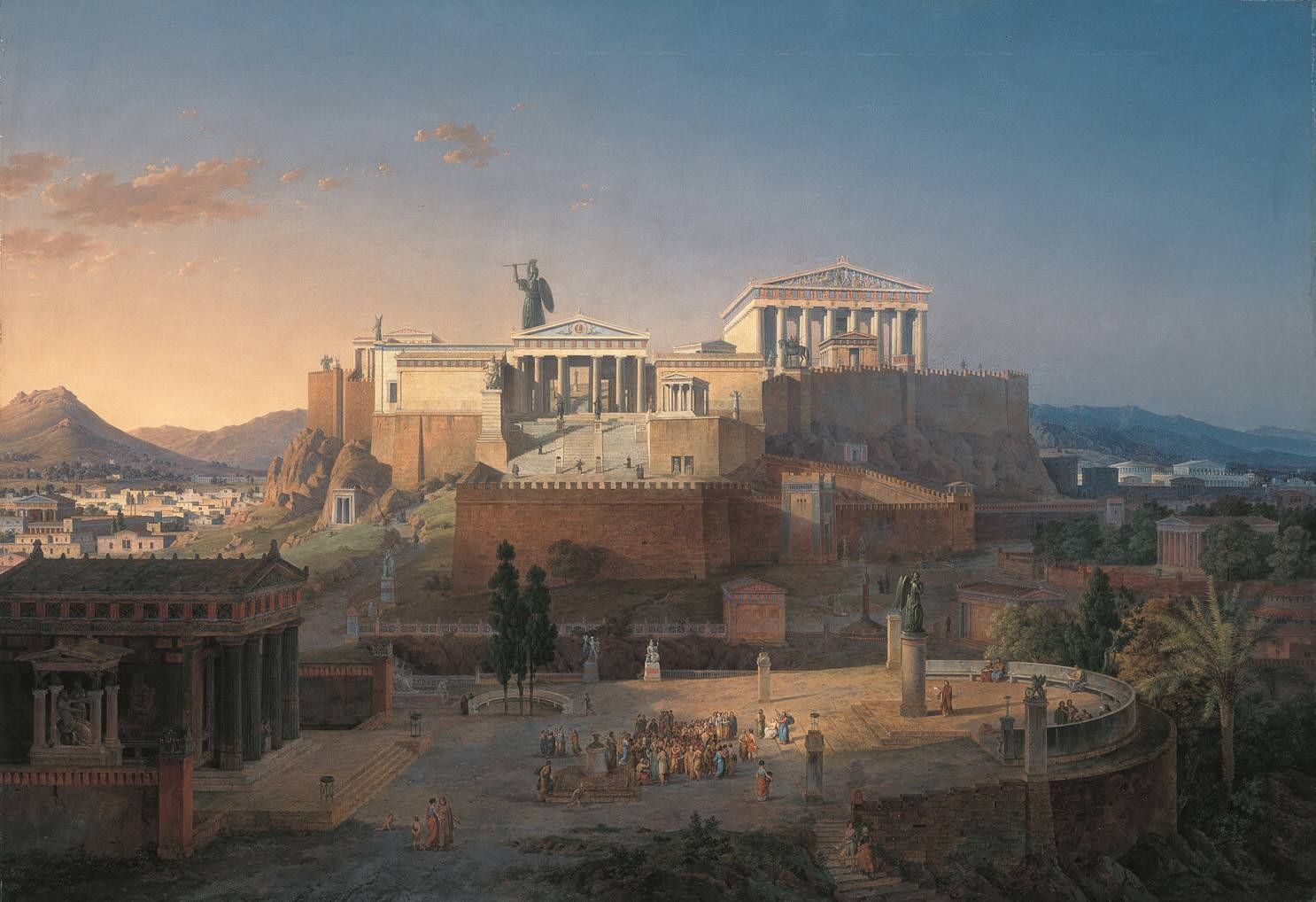
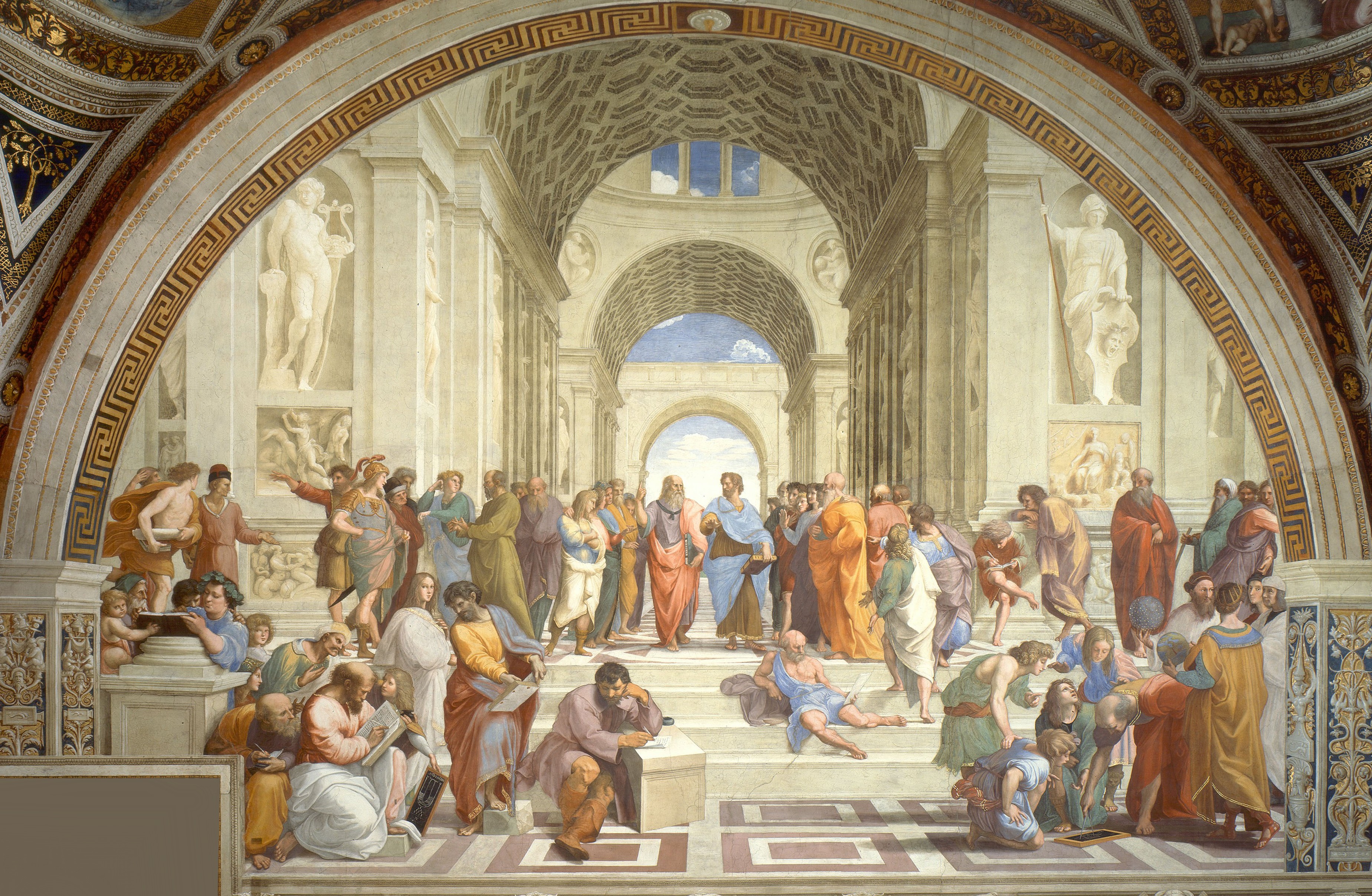
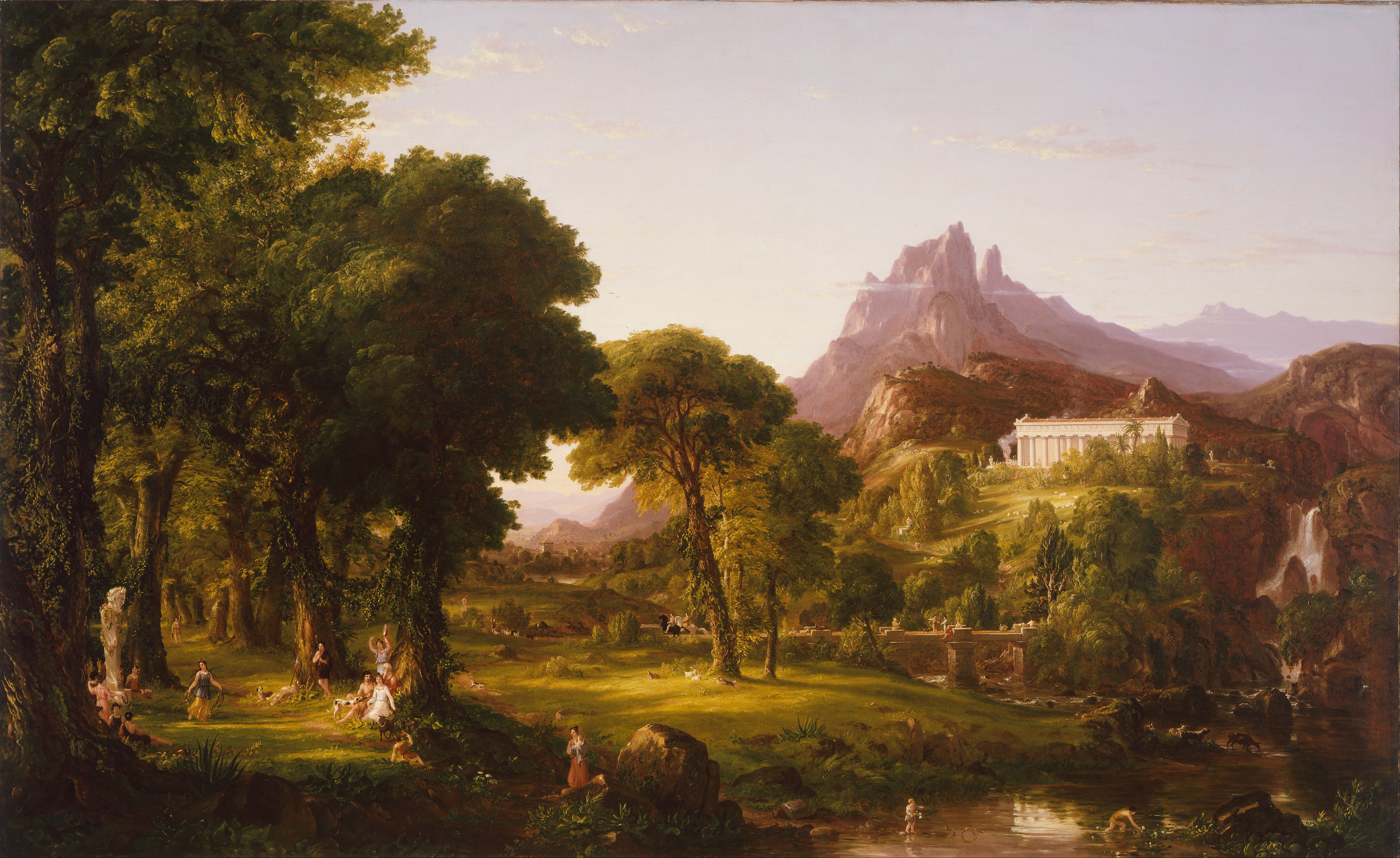
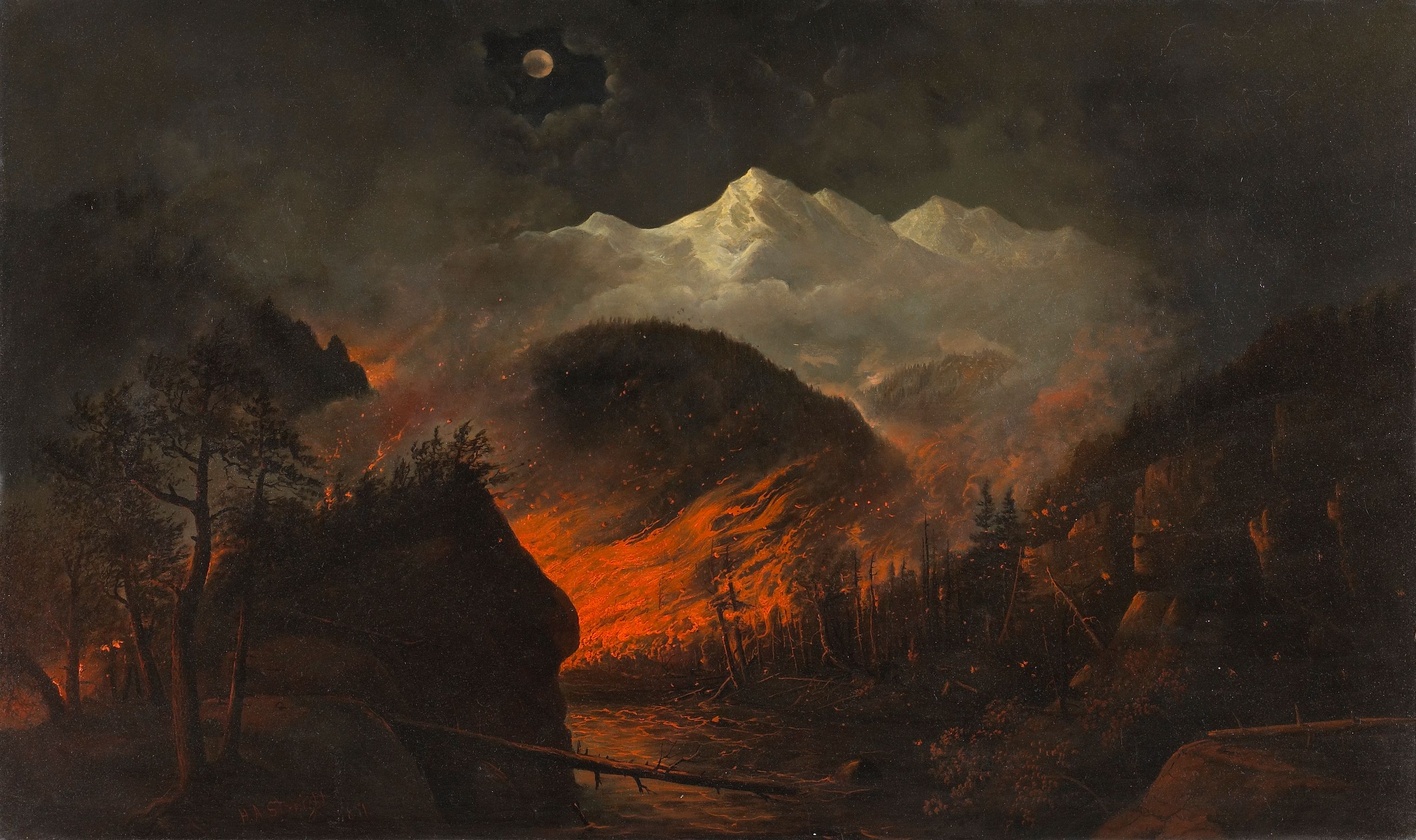
I've set a randomizer on /etc/xprofile so that when I boot up Xorg, I get a randomly selected wallpaper out of this bunch. Images are hotlinked to avoid DMCA gentoomen.





More
tile-anon's tiles - Comfy tiling wallpapers. They can be applied usingxwallpaper --tile.The Crypt - World Playground Deceit - Ratakor - More wallpapers
Boomer Bing wallpapers
curl "https://www.bing.com$(curl -s "https://www.bing.com/HPImageArchive.aspx?format=js&idx=0&n=1&mkt=en-US" | grep -oP '"url":"\K[^"]+' | sed 's/\\//g')" -o bing.png && xwallpaper --zoom bing.png && rm bing.png
Mobile Wallpapers